How to Use MetaTrader 5: A Complete Guide
Many beginners have the same feeling of being overwhelmed when first opening MetaTrader 5 as they think, “Where do I begin.” Fortunately, once you go through the process of exploring each feature available with MetaTrader 5 step by step you will discover that this trading platform is very user-friendly and one of the most powerful platforms for trading available.
MetaTrader 5 (MT5) has been developed to allow traders of all types to trade with speed, use advanced charts, and have the ability to trade multiple asset classes including Forex, Stocks, Indices, Commodities, etc… That’s exactly what this MT5 tutorial is designed to help you with.
Why Is MT5 So Popular Today?
Many retail and professional traders are using MT5 as their trading platform of choice based upon the amount of flexibility and depth it provides traders without sacrificing ease of use. Traders are able to quickly execute trades and evaluate the markets with accuracy, while also having the opportunity to utilize automation with MT5’s advanced tools. Additionally, MT5 is built specifically to support the use of multiple markets, and therefore will allow traders to switch charts within seconds, create and use dozens of MT5 indicators, and customize almost every aspect of MT5 according to their style.If you’re coming from the MT4 the interface is significantly cleaner in MT5.
Even if you’re entirely new to trading, MT5 is still simple for you to navigate, if you know where to begin.
The first thing to do is very simple. Head over to your broker and download their MetaTrader 5 platform. Virtually all big name brokers offer the option of directly downloading the MT5 software and installing typically only takes a few minutes.
Once you have the MT5 installed it will prompt you to open either a demo account or a live account. If you’re new to trading, the best thing to do is open a demo account, it gives you access to real time market conditions without putting your own money at risk so you can familiarize yourself with the MT5 platform.
Once you have created your login details the MT5 platform will automatically load.
Getting Familiar with the MT5 Interface
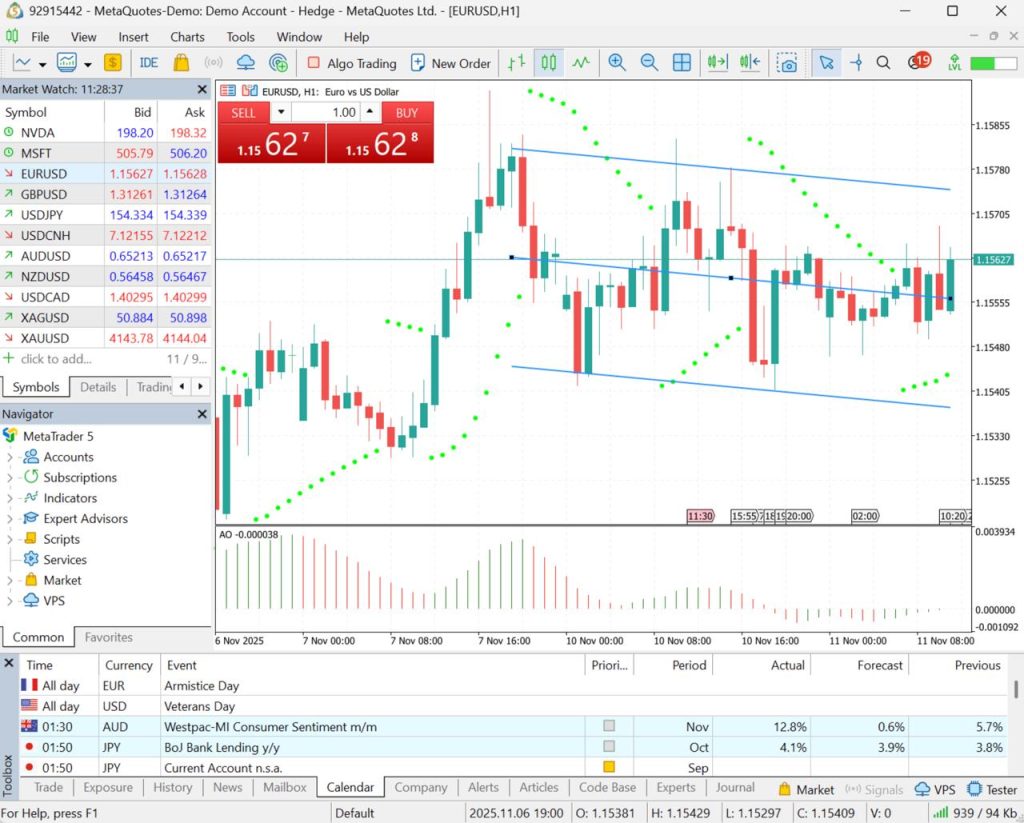
A new MT5 Platform is going to create a number of different messages; there are four key areas you should familiarise yourself with so that you may make the most out of the MT5 platform when it comes to trading.
1. Market Watch Panel
In the market watch panel, you can see all of the symbols that are available to you to trade (currency pairs, stocks, etc…). You can right click to add or remove a symbol from the market watch and you can open charts of a symbol by clicking once on it.
2. Navigator Panel
In the navigator panel, you see all of your accounts, indicators, Scripts and expert advisors. You can think of Navigation as your toolbox.
3. Chart Window
The chart window is the most important part of the MT5 platform. This is where you analyse the market, apply indicators, draw tools and determine when and how to make trades.
4. Toolbox Panel
The toolbox panel is located at the bottom of the MT5 platform. It’s where you can see all of your previous trades, any open Order, news and alerts and more.Understanding what each of these areas within the platform represent takes away a lot of confusion about usage.
How To Set Up Currency Pairs And Access Charts
How do you add currency pairs to your market watch window and charts? The process is outlined below for your convenience.
To begin trading, all traders need to create a list of currency pairs that they wish to track. This process involves:
1. In your Market Watch window, click with the right mouse button.
2. Select “Symbols” from the context menu.
3. Click on “Show” next to any of the instruments you would like to add to the list.
4. To open a currency pair or asset, double-click on that symbol. It will immediately be opened as a chart.
It is also possible to have multiple charts open simultaneously; you can use the buttons on the toolbar to view various time frames in side-by-side comparison.
Customization Of Charts
Customizing charts is one of the best features of this MetaTrader 5 guide; you can change every aspect of your chart from colours to styles to timeframes so that they fit your specific trading style.
Changing Chart Type
You may select between Candlestick Charts, Bar Charts or Line Charts by clicking on the toolbar icons.
Most traders prefer using candlestick charts due to their ability to quickly show significant amounts of information at once over time.
Changing Timeframe
The timeframes that MT5 provides range from 1 minute up to 1 month. You are able to change the displayed timeframe by clicking on the buttons labelled “M1; M5; M30; H1; H4; D1…”
Many short-term traders will use the “M5” or “M15” timeframes whereas swing traders will typically use either “H4” or “D1” timeframes.
The Power Behind Using Charts: Adding Indicators & Drawing Tools
This is where MT5 really sets itself apart from other platforms; indicators are used to identify trends, momentum, volatility, and points of entry into the market.
How To Add indicators
From the Navigator window, expand the “indicators” folder.To utilize an indicator for the chart simply drag it onto the chart screen. Some tools are most commonly used from within the user interface, they include:
Moving Averages (MAs)
Relative Strength Index (RSIs)
Moving Average Convergence Divergence (MACDs)
Bollinger Bands (BBs)
Fibonacci Tools
To arrange and prepare for analytical purposes, you will find drawing tools, such as trendlines and Support/Resistance level markers. Choose your tool from the toolbar and add it to your charts.
As an advanced platform for technical analysis, MT5 has many of the same advanced tools available to MT4, including Channel tools, Andrew’s Pitchforks, and Fibonacci retracement tools.
Entering Your First Trade
After you have developed a familiarity with charting tools, you are ready to begin trading. There are many different ways to enter a trade; the quickest way to create an order is:
Right-clicking on your chart and selecting New Order
Selecting the one-click trading button located at the top-left of your chart.
After creating your trade order, a Trade Order Window will appear for you to enter information regarding your Lot size, whether you want to Buy or Sell, and to include a Stop-Loss and/or a Take-Profit.
Try to begin with very small lot sizes when starting to execute trades as a new trader. Trades that are executed with large positions can cause you to lose more capital than you realize.
Orders entered on MT5 execute very quickly which is one of the many reasons that scalpers and day traders choose to use MT5.
Managing Open Trades
The Toolbox Section located at the bottom of the platform displays all currently active trades for you to track your
current Profit/Loss
entry/exit levels
Swap costs
used margin
If you want to modify a trade that you have entered, right-click the trade in the Toolbox window and then select Modify Order or Delete Order, as desired. You may move your stop-loss to a tighter level, adjust your take-profit, or completely close the position.
MT5 offers a very user-friendly way to manage your open trades in real time.The new feature that MT5 provides users with the ability to trade in multiple markets on a single platform is one of the best things about it compared to MT4. With MT5, you can trade on the following:
Forex
Gold and Silver
Crude Oil
Shares
Indices
Cryptocurrencies (depending on which brokers you use)
So if you want to diversify your trading and don’t want to keep switching between different apps (for each type of market), the MT5 platform is perfect for that, because everything is available in one platform!
MT5 offers an automatic trading option (Algorithmic Trading), which is very appealing to anyone who has ever wanted to try out an automated trading system. MT5 has its own programming language, MQL5. Traders can create robots and test their strategies using backtesting, and even purchase pre-made tools from the marketplace.
Even if you haven’t yet reached the level of automation that you’re interested in, it’s nice to know that the platform can continue to develop and grow with you! Most traders start their careers doing manual trading, then eventually start to branch into more advanced and automated forms of trading.
Setting up alerts and notifications for your trading activities can save you lots of time and keep you from having to monitor your charts constantly throughout the day. MT5 provides an option to set price alerts, indicator alerts and news alerts, among others.
Here’s a summary of how to set a price alert:
1. Open the Alerts tab in the Toolbox window.
2. Right click anywhere within the Toolbox window, and select ‘Create’.
3. Enter the desired price level for notification.
4. Select whether or not you would like to receive a pop-up notification or an email notification. These notifications are especially useful if you have a job or other commitments, and can’t realistically watch the market all day long.MT5 strategy backtesting:
MT5 strategy backtesting allows you to backtest any strategy you believe may work to see how that same strategy would have performed over time using the strategy tester built into MT5). Using MT5 for backtesting gives you insight into whether you have developed a profitable trading strategy or whether you have made any of the common forex trading mistakes which may have resulted in a loss.
Backtesting can be an enjoyable process however, there also many advantages to backtesting. The first and most important benefit of backtesting is building confidence in developing a profitable trading strategy through the experience of backtesting and how the trading strategy has performed historically under different market conditions.
A Quick Note About Brokers That Support MT5
this article discusses the benefits of using MT5, it’s important to note that different brokers offer different variations of MT5. For instance, OTET offers MT5 accounts with a minimum initial deposit and with leverage of up to 1:1000 depending on the account type.
Tips for mastering the use of MT5 (MetaTrader 5):
1. Customize the layout of your Workspace.
Select chart colours and layouts that work best for you.
2. Do not use too Many Indicators.
Limit your use to two or three indicators. Too many signals only lead to confusion.
3. Start to practice on Demo Accounts Before Trading Live.
No matter how much you know about a trading platform, if you are not practicing, you will be more likely to make emotional mistakes while trading.
4. Create a Routine for Yourself.
Once you practice daily for a minimum of two weeks, you will develop your own routine, and finding your place in MT5 will be very simple and Natural.
Conclusion
Using MT5 is not as complicated as it can seem. You will be able to use the MT5 trading platform, with some practice and a positive attitude, to assist you in your trading journey.
This MT5 Guide has provided you with information from where to find MT5 setup instructions through the execution of trades, the use of indicators, and alerts, backtesting and other backtesting techniques. With more experience and time spent using MT5 , you will come to understand that MT5 is not only a platform from which you trade, but it is also the “window” through which you connect with and analyze the financial markets.
Share
Hot topics

What is News Trading in Forex? A Complete Guide to Event-Driven Strategy
Introduction If you have ever watched the forex market during a major economic announcement, you know how dramatic it can be. Prices jump within seconds. Spreads widen. Volatility explodes. For...
Read more




Submit comment
Your email address will not be published. Required fields are marked *