How to Add Symbols in MetaTrader (MT4 & MT5)
When you first start MetaTrader, it may feel a little empty. You can see charts, prices, and a beautiful layout, yet something is lacking. That “something” is usually the trading symbol you intend to trade.
Many traders believe MetaTrader will automatically display all accessible options. In fact, most symbols are concealed by default. You must manually enable them, and this simple step sometimes confuses beginners.
The good news is that adding symbols to MetaTrader is simple. Once you know where to search, it becomes a routine activity.
In this article, we’ll walk you through it step by step, without using jargon or applying pressure. Whether you use MT4 or MT5, the logic stays the same. Only the layout slightly differs. By the end, you’ll clearly know how to find, add, and manage your symbols.
Why Symbols Matter More Than You Think
A trading symbol represents what can be traded, price changes, and order action. If you can’t find a trading symbol, you can’t open a trade or look at it and add an indicator; therefore, if you can’t find a symbol, there could be a missed opportunity.
Some traders believe their broker does not have certain instruments; however, in most cases, the trading symbol simply isn’t shown. Knowing how to add it can help prevent wasting time on unnecessary support tickets.
Additionally, you will be organized since you can only choose instruments you are actually trading, keeping your Market Watch focused and clean.
Understanding Where Symbols Are Stored
MetaTrader categorizes all trading instruments into a feature called Market Watch. This is normally found on the left side of the platform.
When you first install MetaTrader, you will only see a small number of default symbols shown in Market Watch. Typically, these will be your major currency pairs, or popular instruments—everything else will be hidden until you adjust MetaTrader to show them to you.
Think of Market Watch as a menu. The kitchen offers a variety of dishes, but only a select few are visible. Your task is to open the full menu and pick what you want.
After a trader adds a symbol to Market Watch, it will remain there unless the trader removes it from the watchlist. Therefore, a trader doesn’t need to add the same symbols to Market Watch every single day.
How to Open Market Watch
Before adding any symbol, you must open the correct window, and this is done the same way in both MT4 and MT5.
To open the Market Watch panel using the keyboard, press Ctrl + M. This opens the Market Watch panel immediately. Alternatively, you can find the Market Watch panel in the top menu by clicking View and selecting Market Watch, and the panel will be shown on the left side of your screen.
If Market Watch is already open, you’re ready to proceed. If not, don’t worry; this shortcut will become second nature with time.
Showing All Available Symbols (The Fast Method)
To quickly see all symbols provided by a broker, open the Market Watch window and select Show All from the Right Mouse button options. All available symbols, including Forex, Metals, Indices, etc., will display instantly.
A vast selection of instruments may confuse many traders, and a more selective strategy is often preferred by them.
Adding Symbols One by One (The Clean Method)
If you prefer control, adding symbols manually is a better option. This keeps your workspace tidy and focused.
To add a symbol, you would right-click inside of Market Watch again, but this time select “Symbols.” This willbring up a separate window with a complete listing of all the symbols offered by your broker. The symbolsare organized by category.
In the symbols window, you will see folder categories for Forex, Metals, Indices, or Crypto. Using the small plus sign to the left of a category will expand the folder.
Once you find the symbol you want, highlight it by clicking on it. After highlighting, you would click “Show,” and the symbol will now appear on your Market Watch immediately. When finished, click “Close.”
The Difference Between MT4 and MT5 Symbol Lists
When adding instruments to the platform, it helps to understand how MT4 symbols and MT5 symbols are structured. While both platforms allow you to customize your watchlist, MT5 symbols often come with more variations due to different contract specifications. No matter the platform, a clean trading pair setup makes analysis easier and helps you switch between markets quickly without unnecessary distractions.
MT4 and MT5 seem similar; their symbol structures differ slightly. This sometimes confuses traders who transition between platforms.
MT4 often has simpler classifications. Symbols are organized straightforwardly. You’ll notice fewer variations of the same instrument.
MT5 is more comprehensive. It may display several versions of the same asset. These may vary depending on the size of the contract and its method of execution.
This is normal, not an error. MT5 is intended to handle more complex market structures. Just make sure you choose a symbol that fits your trading style.
How to Confirm a Symbol Is Active
After adding a symbol, make sure it works properly. Visibility alone is not sufficient.
Double-click the symbol in Market Watch. A new chart window should appear instantly. If it does, then the symbol is active.
You can also right-click the symbol and select Chart Window. This is useful if double-clicking does not work.
Check the price movement. If the prices are changing, everything is fine. If not, it may be outside of market hours.
What to Do If a Symbol Does Not Appear
Sometimes, symbols that you are expecting to see may not show up, even after completing these steps. This situation can be very frustrating to new traders.
To resolve this issue, first, check that you are logged into the correct account, because different accounts often have different symbols available. This is particularly common when comparing demo accounts to live accounts.
Also, try refreshing your Market Watch list. By right-clicking and selecting “Refresh,” you are telling MetaTrader to refresh symbol data.
If the symbol does not appear, please contact your broker for assistance. They will be able to confirm whether or not the instrument is available on your trading account. This often is simply an issue of account-type limitations.
Organizing Your Symbols for Daily Trading
After adding symbols to your Market Watch list, organizing your Market Watch list to avoid clutter is very important because too many symbols will slow you down.
You can hide any symbols that you do not trade by right-clicking the symbol and clicking hide; doing so will not remove the symbol permanently.
You can also change the order of your Market Watch symbols; simply click and drag the symbol into your desired location. Many traders will group similar instruments in their Market Watch list.
The cleaner your Market Watch is, the more concentrated you will be. The less time you spend looking for symbols, the more time you will have to analyze them. This simple little habit can save you a lot of time over the course of your trading career.
Adding Symbols Directly from Charts
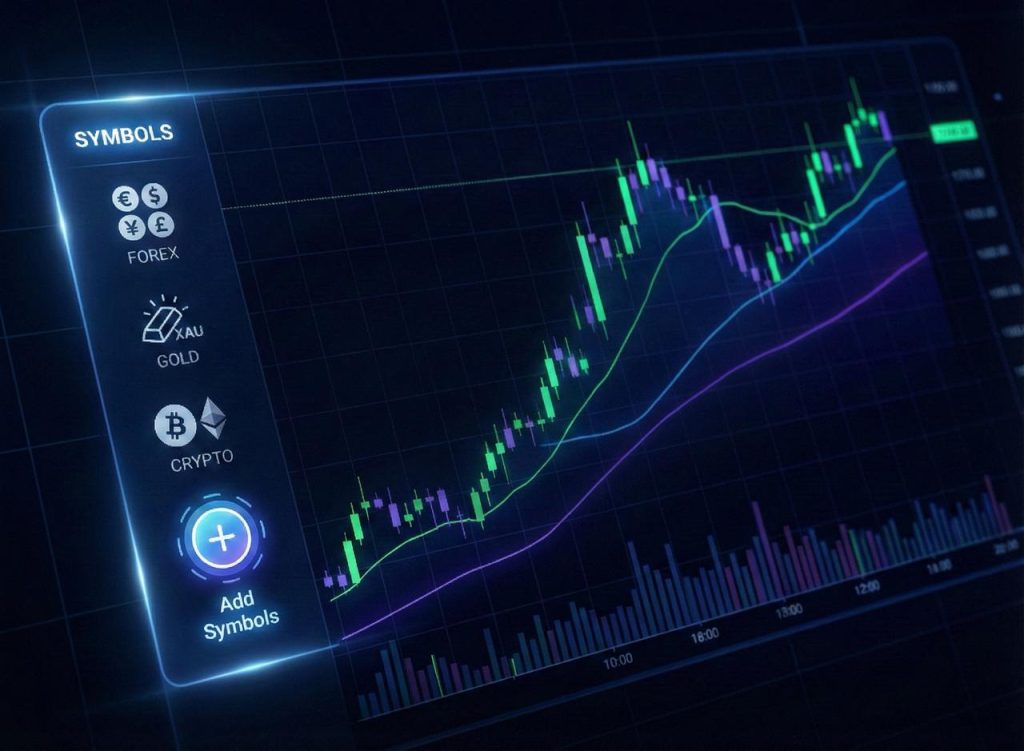
On MetaTrader, you can change symbols from your chart. This is a fast way to change instruments if you are in a hurry.
1. Right-click your already open chart.
2. Click on ‘Properties’.
3. Find the field named Symbol.
Choose from a list of symbols that need to be visible on Market Watch as you choose each one.
Your chart will be updated immediately, but this does not show or hide from the Market Watch page; it is a way to quickly see other markets.
This method works well only if you have already enabled a symbol. If a symbol is still hidden, then you will not see it here.
Understanding Symbol Suffixes and Names
Brokers use suffixes (extra letters or symbols) at the end of their symbols to help them identify liquidity or account types; they do not change the symbol itself. A common mistake made by new traders is that they believe the suffix indicates a new market.
The contract’s specification can be found by right-clicking on the symbol of interest, then selecting ‘Specification’. The contract’s specification will provide information such as the contract’s spread, swap, and trading hours.
Understanding the specification of symbols will help you to avoid making mistakes when trading and to make comparisons between brokers and trading platforms.
Common Beginner Mistakes When Adding Symbols
One frequent misconception is that symbols are lost forever. Most of the time, they remain hidden.
Another mistake is to use too many symbols at once. This causes mess and confusion. Begin with a small and concentrated list.
Some traders forget to check the market hours. They believe a symbol is damaged when it is just closed. Always confirm trade sessions.
Finally, many beginners do not thoroughly examine the Symbols window. This is where MetaTrader’s true flexibility lies. Spend time there—it will pay dividends.
Building a Simple Trading Routine
Adding symbols should be a part of your setup process. Do it once, do it correctly, and move on.
Before trading, make sure your symbols are visible. Open the charts for your main instruments. Check the price trend and spreads.
This establishes consistency. Consistency reduces errors. And fewer mistakes equals better long-term outcomes.
MetaTrader rewards traders who comprehend the platform’s structure. It’s not complicated; it’s just layered. Everything seems to work smoothly once you understand the basics.
Why Learning This Early Makes Trading Easier
Many traders overlook small platform skills when they first start trading. They focus on strategies, indicators, or signals, but forget that comfort with the trading platform itself is just as important. Knowing how to add and manage symbols is one of those foundational skills that quietly make everything easier later on.
When you can quickly find the instruments you want, you spend less time clicking through menus and more time actually analyzing the market. This reduces frustration, especially during fast-moving market conditions where hesitation can cost you a good opportunity.
Over time, these small efficiencies add up. A well-organized Market Watch helps you stay calm, focused, and confident in your decisions. Instead of feeling like the platform is working against you, it starts to feel like a tool that supports your trading process.
Final Thoughts
The ability to add symbols in MetaTrader may seem like a minimal skill, but it has a significant effect on how you do trading.
From saving time and decreasing frustration to helping you gain better focus, adding symbols to Market Watch also allows you complete control over your trading platform. You trade what you want, not what is available, in a random manner.
If you ever feel that MetaTrader is holding you back, just remember that the majority of those limitations are simply settings you can modify. Adding symbols to Market Watch will be one of the easiest settings to change.
As you gain experience, these small platform skills become automatic. You no longer think about where symbols are or how to add them. Everything feels familiar, allowing you to focus on planning trades, managing risk, and improving consistency rather than struggling with basic platform settings.
Ultimately, spend a few minutes customizing Market Watch for your trading purposes. Your future self will be grateful!
Share
Hot topics

What is Forex Rebate
Introduction If you have been trading Forex for a while, you have probably noticed that every trade comes with a cost. Whether it is spread, commission, or both, trading is...
Read more




Submit comment
Your email address will not be published. Required fields are marked *